
Installing & Managing Plugins
This page is the user's guide to the plugin lifecycle: getting a plugin onto your machine, approving it, and removing it again. To build a plugin, see Build Your First Plugin.
Everything here is available two ways — the Plugins page in the app
(/plugins) and the ciaren-plugin CLI. Pick whichever fits;
they act on the same state.
Plugins run real code on your machine
A plugin is ordinary Python that runs with your account's access — it is not sandboxed. Install only plugins from sources you trust and whose code you can review. The permission list a plugin shows is a heads-up, not a security boundary. See Plugin Security & Permissions.
The lifecycle at a glance
install ─▶ pending (needs approval) ─▶ approve ─▶ active
                                          │            │
                                    disable/enable ◀───┘
                                          │
                                     uninstall ─▶ gone
A freshly installed plugin is never loaded automatically. Its code stays un-imported until you explicitly approve it — even a plugin that requests zero permissions — because approving is really "let this code run". This is the one gate that protects you; the rest is convenience.
Install a plugin
There are four ways a plugin gets onto your machine.
1. Upload a .ciarenplugin (Plugins page)
Click Install plugin on the Plugins page and pick a .ciarenplugin file. A
confirmation window then spells out the risk of running plugin code and asks you
to enable a toggle (off by default) — "I trust the source of this plugin…" —
before the install proceeds, so you can't one-click past an untrusted or unknown
package. The file is verified (signature + integrity) and checked for compatibility
before anything is written to disk, then lands pending until you approve it.
2. From the Explore catalog
If a marketplace index is configured (CIAREN_MARKETPLACE_INDEX), the Explore
plugins section lists installable entries with their trust tier (earned by
verifying the artifact's signature, never copied from the catalog), license, the
Ciaren versions they support, and the pip dependencies they bring. Install
re-verifies the advertised digest against the artifact, then installs it — the
same gated path as an upload.
When the catalog advertises a newer version of a plugin you already have, the
entry shows the version transition (e.g. v1.0.0 → v1.2.0) and an Update
button — an update is a forced reinstall through the same verified path, and if
the publisher's signing key changed since you approved it, the plugin is
re-gated for your approval. Entries the catalog has revoked (withdrawn as
malicious or broken) can no longer be installed, and a warning banner lists any
revoked plugin you already have installed.
3. From the command line
ciaren-plugin install ./acme.ciarenplugin            # verify + install
ciaren-plugin install ./acme.ciarenplugin --trusted  # refuse unless signed by a trusted key
ciaren-plugin list                                   # see what's installed
4. Drop-in directory (development)
Point CIAREN_PLUGINS_DIR at a folder of plugin directories, or drop one into
~/.ciaren/plugins. Great for local development — no packaging needed. These are
still gated: they appear as pending until you approve them.
Approve, disable, and permissions
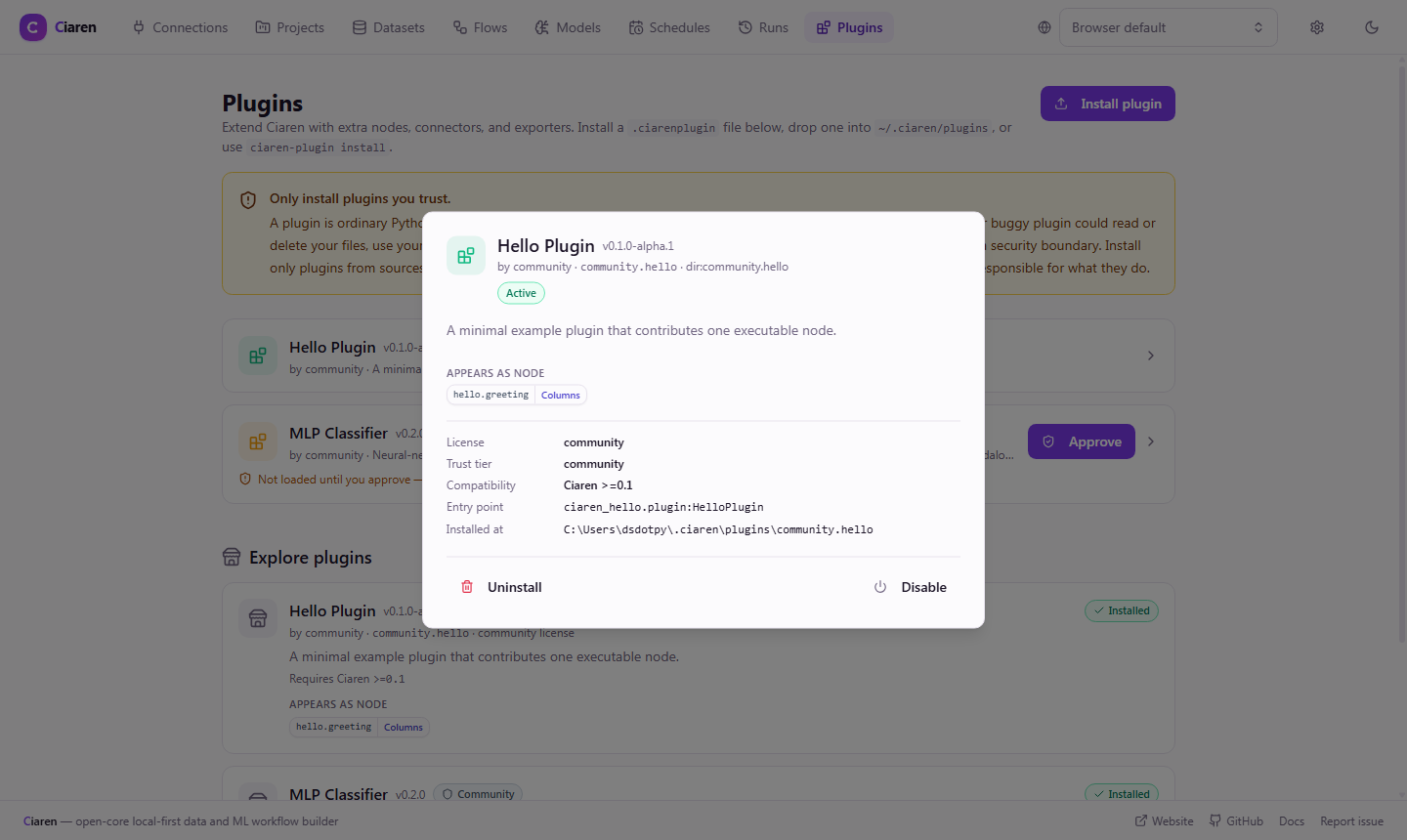
The Plugins page shows one compact card per plugin — name, version, status, and the primary action right on the card (Approve for a pending plugin, Enable for a disabled one). Click a card to open its details: the permissions it requests and which you granted, the nodes it contributes, and its manifest metadata — license, trust tier, compatible Ciaren versions, pip dependencies, entry point, and install location. The remaining actions live in that details view.
| Action | Where | What it does |
|---|---|---|
| Approve | Card & details | Grants the requested permissions and lets the plugin's code load. A pending plugin becomes active. |
| Disable | Details | Stops loading the plugin on future startups. Its files stay on disk; re-enable any time. |
| Enable | Card & details | Re-loads a disabled plugin (re-applies its existing grants). |
| Revoke | Details | Withdraws permissions you granted. If it then lacks a required permission it drops back to pending and stops loading. |
| Add license | Card & details | For a premium plugin in the License required state: paste the license token you received after purchase. The token is verified against the trusted issuer keys before it is saved, and the plugin loads immediately. |
| Remove license | Details | Deletes the cached license token from this machine (for example to move a seat elsewhere). The plugin drops back to License required. |
| Uninstall | Details | Deletes the plugin's installed files after a confirmation (see below). |
From the CLI:
ciaren-plugin enable  acme.hello
ciaren-plugin disable acme.hello
Changes take effect live — the node catalog is rebuilt, so a plugin's nodes appear in (or leave) the editor palette without a restart.
Optional runtime enforcement
Granted permissions are advisory by default (an approved plugin runs unsandboxed).
For shared or less-trusted setups you can enable an opt-in audit-hook layer with
CIAREN_PLUGIN_PERMISSION_ENFORCEMENT=warn (log ungranted network/file-write/
subprocess/shell actions) or =enforce (block them). It raises the bar and gives
an audit trail — it is not a sandbox. See
Plugin Security.
Uninstall a plugin
Uninstalling deletes the plugin's installed files and forgets its saved state (approval and permission grants). Its contributed nodes leave the palette immediately; flows that use those nodes won't run until the plugin is reinstalled.
Plugins page: open the plugin's details, click Uninstall, and confirm the destructive prompt.
CLI:
ciaren-plugin uninstall acme.helloUninstall vs. Disable
Uninstall only applies to plugins installed into the managed directory
(~/.ciaren/plugins, or CIAREN_PLUGIN_INSTALL_DIR). A drop-in plugin (from
CIAREN_PLUGINS_DIR) or a pip-installed entry-point package has no managed
files to delete — the app shows Disable for those instead. Remove a drop-in by
deleting its folder, or a package with pip uninstall.
Trust badges
Each installed plugin shows how its package verified at install time — hover a badge for a plain-language explanation of what it means:
- Official — first-party: a valid signature from a Ciaren publisher key that ships pinned inside the app itself. Because the key is part of the app (never read from configuration or a catalog), this badge can't be spoofed by an index entry or a config change.
- Trusted — a valid signature from a key you trust.
- Untrusted key — validly signed, but by a key not in your trusted set.
- Unsigned — no signature (allowed by default for community plugins).
- Invalid signature — tampered or a bad signature (installation is refused).
Reinstalling a plugin id under a different signing key (or downgrading from a trusted signature) withdraws your approval automatically, so a swapped publisher can't inherit the trust you gave the original. See Packaging & Distribution for the signing model.
Next steps
- Plugins Overview — every extension point
- Build Your First Plugin — the 10-minute tutorial
- Plugin Security & Permissions — the trust model